Overview
The Simplicity AI API lets you programmatically upload documents, trigger AI-powered form filling, and retrieve completed results. This guide walks you through authenticating and making your first API call. Base URLStep 1: Authenticate
Simplicity AI supports two authentication methods depending on your use case.Option A — API Key (Recommended for server-to-server)
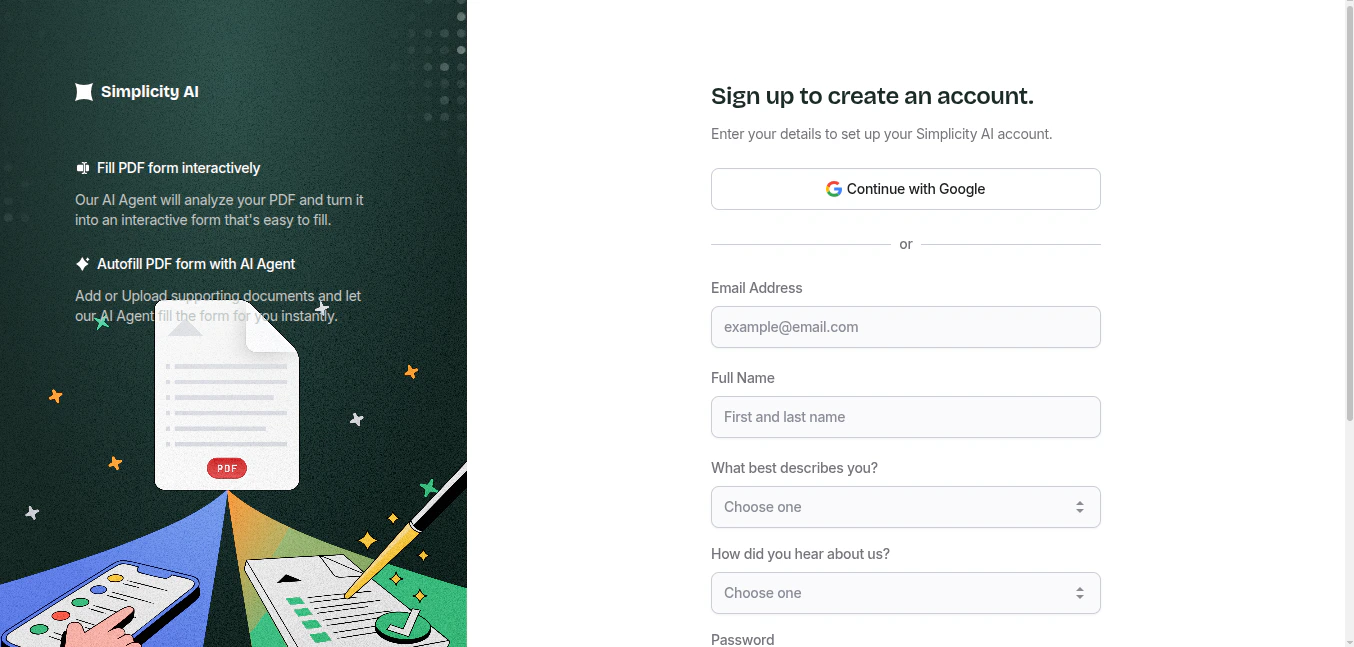
- (a) Visit simplicity.ai and create an account
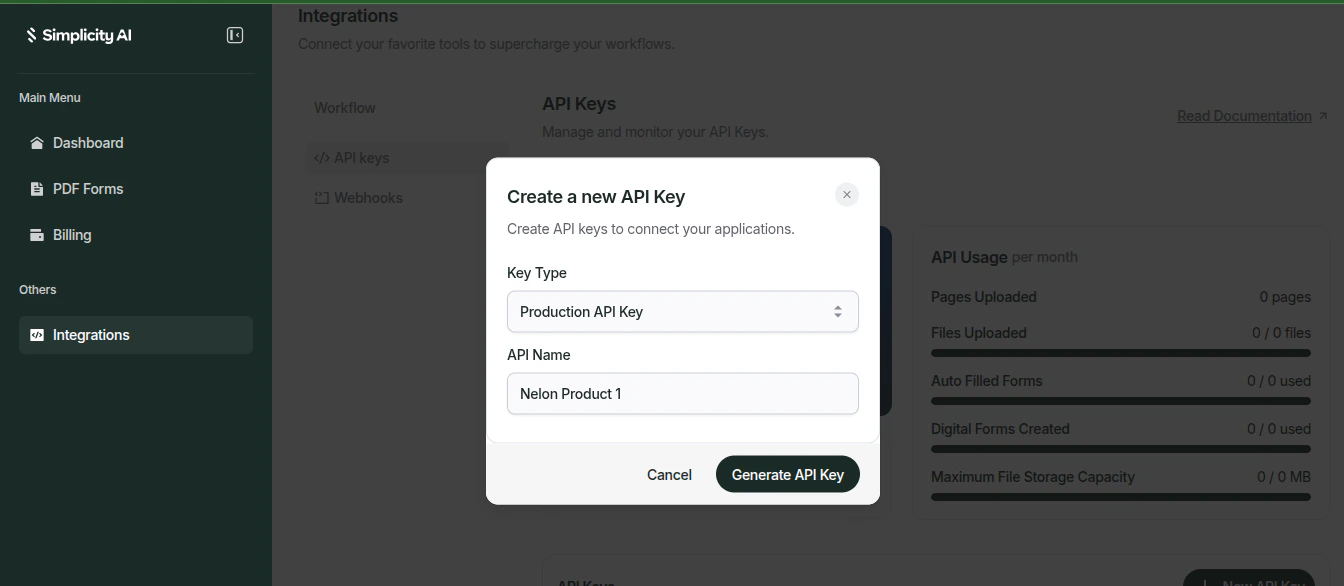
- (b) Generate an API key from your dashboard under Integrations → API Keys. Pass it as the
X-API-Keyheader on every request.
Keep your API key secret. Never expose it in client-side code or public repositories. Regenerate it immediately from the dashboard if it is ever compromised.
Option B — External User ID (For user-scoped requests)
If you are building a multi-user application, you can scope API requests to a specific user by passing their unique identifier in theexternal-user-id. This allows you to attribute document uploads and form submissions to individual users within your platform.
Step 2: Upload a Document
Upload the PDF form you want to fill. The API returns atask_id you can use to track the upload progress.
You can upload a document with the param of document_type which could be:
(a) SOURCE_DOCUMENT: These are documents that are used as knowledge bases or data source for the AI agent when filling a form document.
task_id and status. You can then query the /tasks/:task_id endpoint to check the upload status.
Step 3: Autofill the Form
Pass theform_file_document_id from your upload withdocument_type set toFORM_DOCUMENT (from step 2b above), along with optional source documents, instructions, and context to let the AI agent fill the form automatically.
task_id to poll for completion.
Step 4: Retrieve the Result
Poll the Tasks API with yourtask_id until the status is completed, then use the document_id in the response to download your filled form.
Authentication Quick Reference
Next Steps
Document Management
Learn how to list, retrieve, update, and delete your uploaded documents.
AI Form Autofill
Explore advanced autofill options including source document upload and field mapping.
Task Monitoring
Understand how to track and manage asynchronous operations with the Tasks API.
Webhooks
Receive real-time notifications when form submissions are complete.