1
Add a New Webhook
Navigate to the Integrations section in your dashboard and click Add New Webhook to register a new endpoint.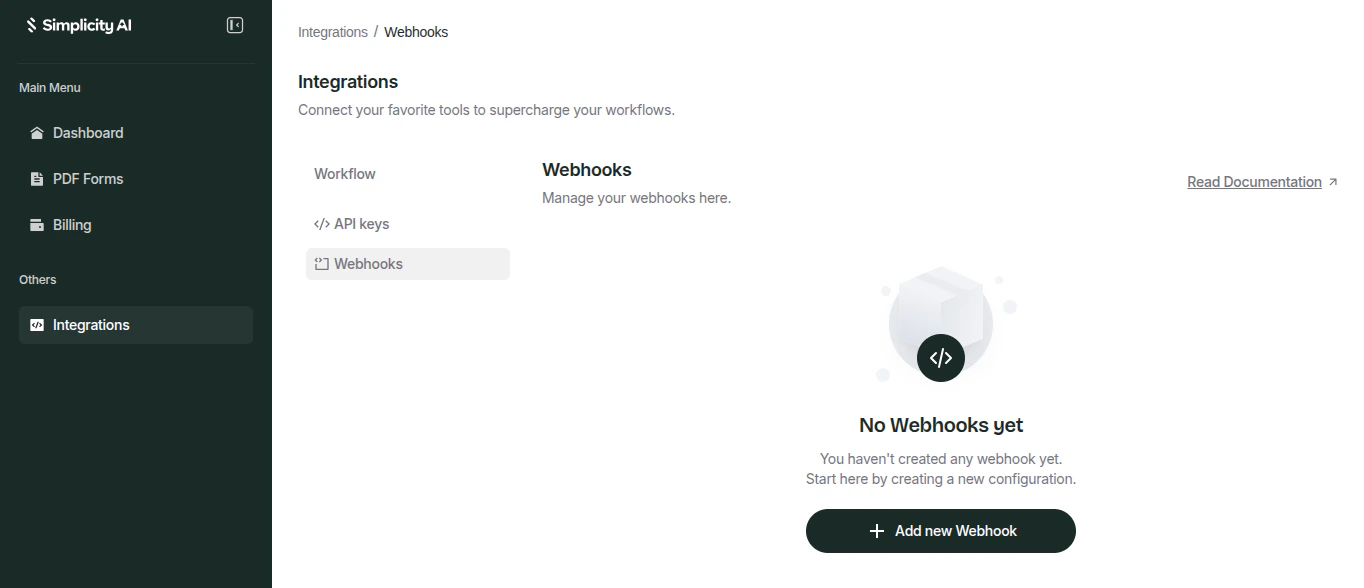
2
Configure Your Endpoint
Enter your publicly accessible endpoint URL and set an Authorization header value.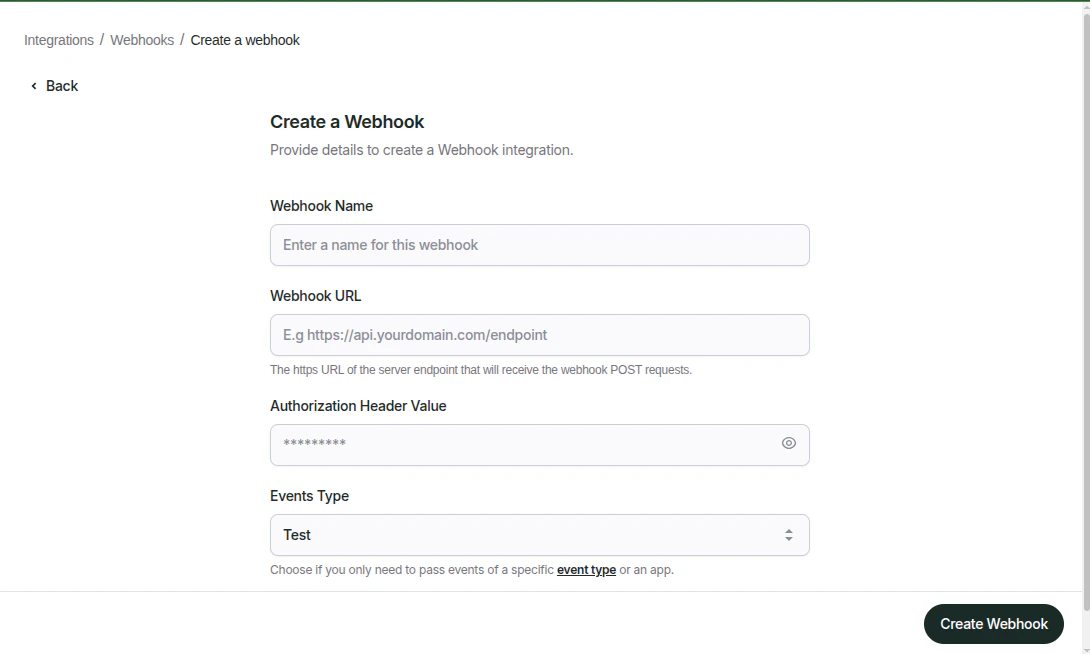
200 OK status code to acknowledge receipt. Any other response code will be treated as a failed delivery and may trigger a retry.3
Manage & Monitor
From the Webhook Dashboard, you have full visibility and control over all your registered webhooks.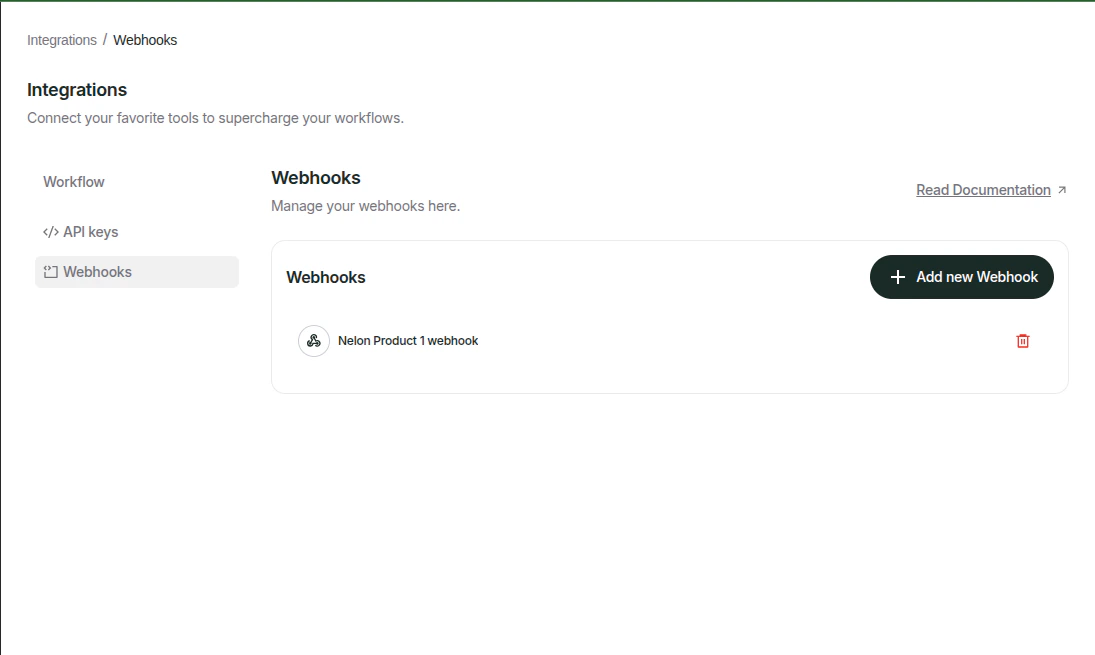
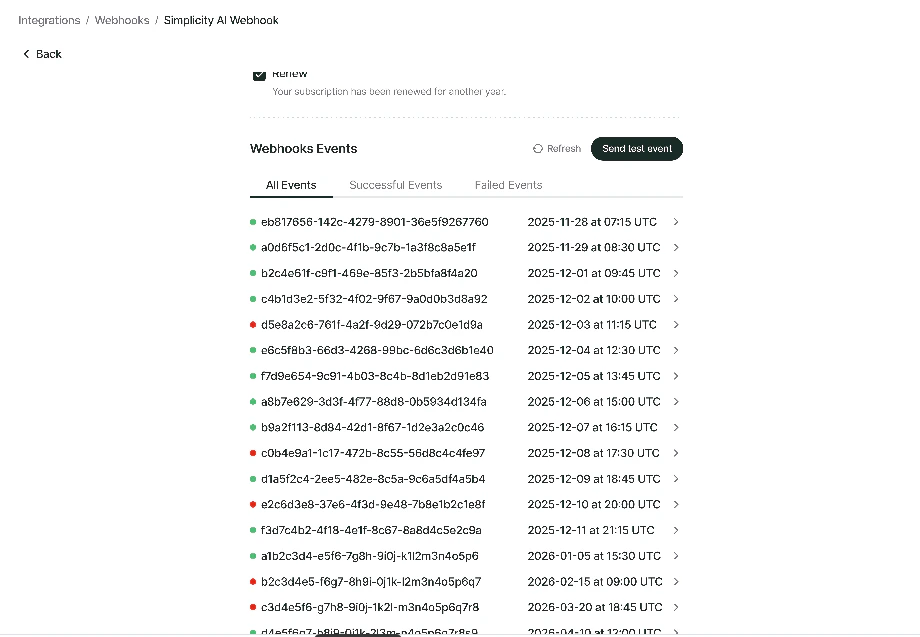
- You can also see all your successful and failed webhook events from your webhook dashboard
- View delivery history — inspect every event that was sent, including the full request payload and server response.
- Debug failures — identify failed deliveries, see the error response returned by your server.
- Monitor status — quickly see which webhooks are active, paused, or experiencing repeated failures.
- Edit or delete — update your endpoint URL or authorization header at any time, or remove a webhook entirely.
If your endpoint is temporarily unavailable, Simplicity AI will automatically retry failed deliveries with exponential backoff to avoid data loss.